Shopify Staging Environment: Safe Testing and Deployment
Shopify has no built-in production-clone staging. Compare duplicate themes, dev themes, dev stores and previews, then build a safe release workflow with rollback.
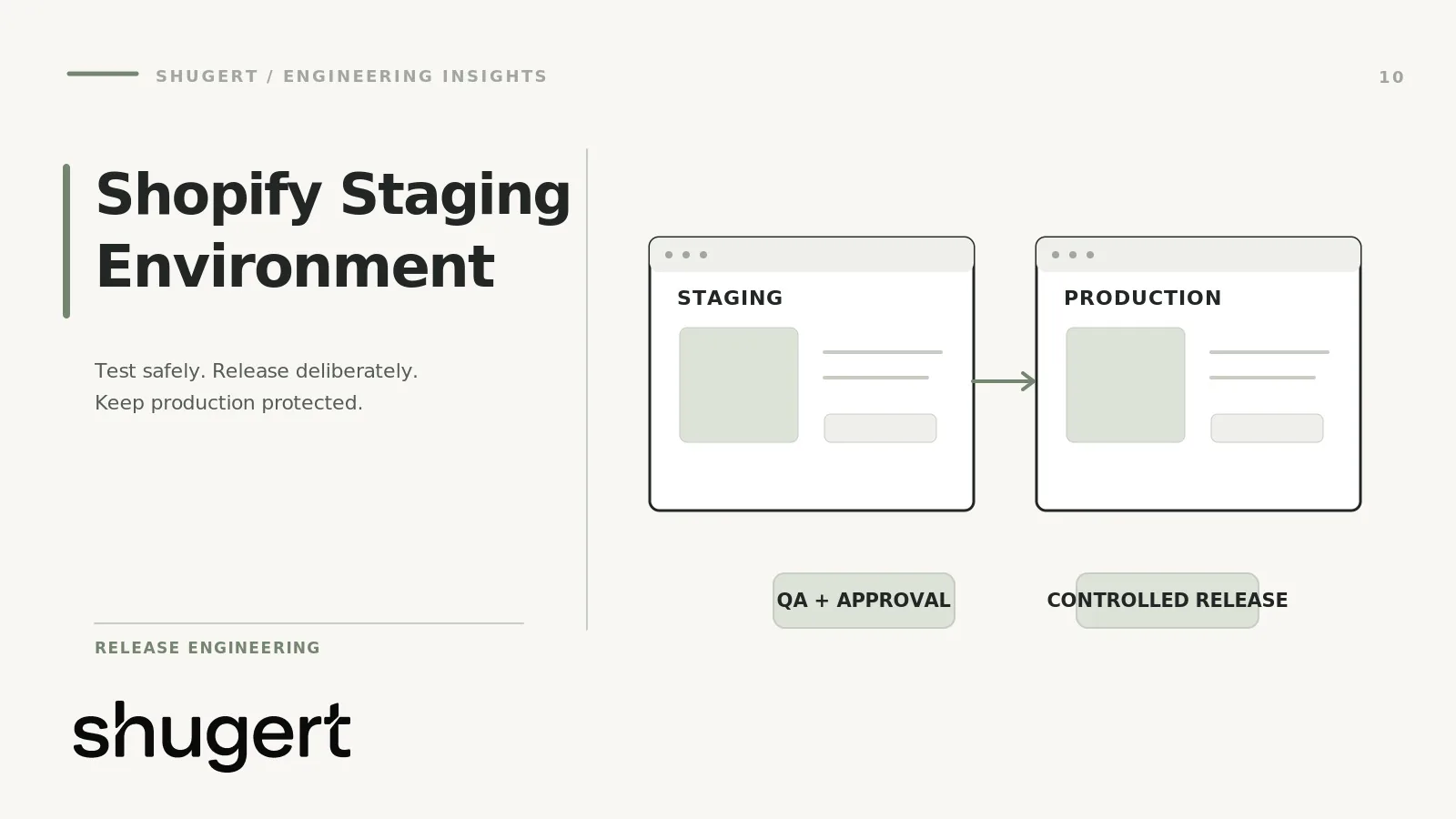
Shopify does not give a standard store a full copy of production to test against. According to Shopify’s own staging guide, stores don’t come with a native staging environment, so teams assemble one from a duplicate theme, a development store or a third-party tool. Each option covers a different slice of risk, and none of them clones your live orders, customers, apps and payments. This guide explains why, compares the options, and lays out a release workflow for an established store where a bad deploy costs real revenue.
Key takeaways
- Treat “staging” on Shopify as a set of layers, not one environment: theme code is easy to isolate, while data, apps, payments and customer accounts are not.
- A duplicate theme is fine for design changes. Anything touching checkout, apps or integrations needs a development store, a Shopify Plus staging store, or controlled testing in production with test payments.
- Put theme code in Git, connect branches to themes, and make every release a reviewed merge with automated checks and a known rollback target.
- Test the things that break revenue quietly: tracking pixels, structured data, indexation directives, accessibility and mobile layout.
- Never guarantee outcomes from a release. Define acceptance criteria and measure before and after.
Table of Contents
- Why Shopify has no complete production clone by default
- Duplicate themes, development themes, development stores and previews compared
- What you cannot fully test outside production
- A staging workflow for an established store
- Automated testing in the pipeline
- SEO validation before deploy
- Rollback procedures
- Pre-launch QA checklist
- Our perspective: scope staging to the risk
- Get a release process that fits your store
- FAQ
- Sources
Why Shopify has no complete production clone by default
Shopify is a hosted, multi-tenant platform. Your store is one live system that holds the theme, products, inventory, customers, orders, discounts, payment settings, installed apps and their data. The theme is the one layer that is cleanly copyable, because it is a set of files that can exist in many versions at once. Everything else is a single shared state tied to real money and real people.
That is why Shopify’s guidance says a duplicated theme carries visual and structural elements but not backend settings such as apps, checkout or inventory. Cloning orders and customer accounts into a second store would also raise obvious privacy and payment-processing problems. Shopify’s own staging-versus-production guidance says staging should use test data or a copy of production data, while production holds live customer data and needs restrictive access controls, monitoring and careful change control.
The practical consequence: you decide which risks you are testing, then choose the environment that can actually exercise them. Trying to make one environment do everything is where teams get hurt.
Duplicate themes, development themes, development stores and previews compared
There are four common building blocks, plus one Shopify Plus option. The table summarizes what each can and cannot do.
| Option | Good for | Production data | Apps | Payments and orders | Customer accounts |
|---|---|---|---|---|---|
| Duplicate (unpublished) theme | Design, layout, section and copy changes | Uses live store data, because it runs on your real store | Installed apps are live, so app embeds can fire real events | Real checkout, so real orders unless you use a test gateway | Real accounts |
| Development theme (Shopify CLI) | Local coding with hot reload | Uses live store data | Same as above | Same as above | Same as above |
| Development store | Custom code, new functionality, integrations | Empty; you import or seed test data | Limited to free or test-friendly plans | Test gateway only | Test accounts only |
| External preview (preview link) | Stakeholder review | Live store data | Live | Checkout blocked | Not meaningful |
| Shopify Plus staging store type | Themes, branding, custom code in a transactional test environment | Separate store | Separate installs | Test environment, not for selling | Separate |
Duplicate themes
The easiest route on a standard plan is to go to Online Store > Themes, open the current theme’s Actions menu and choose Duplicate, as Shopify describes it. It is fast and keeps your content. The limits matter. The copy runs against your real store, so anything it does through apps, scripts or checkout is live. Merchants also edit the live theme while you work, so your copy drifts from production the moment someone changes a section setting. Without version control, merging those edits back is manual and error-prone.
Development themes
Shopify’s theme CLI documentation describes development themes as temporary, hidden themes that use your store data for local testing. The shopify theme dev command gives you real-time preview, an admin editor link and a shareable preview link. They are deleted after seven days of inactivity and when you run shopify auth logout, so the same documentation says to use an unpublished theme when a preview has to survive logout. Treat development themes as a developer’s scratchpad, not a review environment.
Development stores
A development store is a separate store, which is what makes it the right place for app and integration work. Shopify’s dev store documentation says these stores are always password protected, cannot have the password page removed, cannot be converted to production stores and cannot be transferred to a client. They cannot process real transactions, so order testing requires Shopify’s Test gateway or a payment provider’s test mode. App billing is also constrained: partner-owned apps can use available plans at no charge, while apps from another partner organization require a free plan or a plan marked free for testing.
That is the trade-off in plain terms. A dev store is safe because it is isolated, and it is imperfect because it is isolated. It will not reproduce your real catalog size, your real app stack on paid plans, live payment behavior or production conversion.
Preview links
An unpublished theme can be shared with a preview link. Per Shopify Help Center, the link lets reviewers explore the storefront, blocks checkout and stays active for two days. That makes it useful for design sign-off and useless for purchase-flow testing. Do not send a preview link as evidence that checkout works.
The Shopify Plus staging store type
On Shopify Plus, the Help Center lists a store type called Staging, intended for themes, branding or custom coding in a transactional test environment and not for selling products. If you are on Plus and run checkout customizations, this is the closest thing to a purpose-built pre-production store. It still starts without your production data, so plan how you will seed it. Our notes on Shopify Plus checkout extensibility cover the checkout-specific constraints in more depth.
What you cannot fully test outside production
Be explicit about the gaps, because they define your release risk.
- Real payments. Test gateways validate your flow, not your processor’s fraud rules, 3-D Secure behavior or wallet quirks on real cards.
- Live app behavior. Reviews, subscriptions, loyalty, search and personalization apps behave differently with a real catalog and real customer history. Free or test plans may hide features you use in production.
- Customer accounts and order history. Login flows, saved addresses, B2B price lists and company accounts need representative test records.
- Scale. A dev store with 20 products will not expose a slow collection template that renders 5,000 products.
- Third-party integrations. ERP, OMS and warehouse syncs should point at sandbox endpoints. Our write-up on Shopify ERP integration explains why webhook and batch designs fail differently.
A useful rule: if a change cannot be validated in an isolated environment, reduce its blast radius instead. Ship it behind a feature toggle in the theme, release off-peak, and keep rollback one step away.
A staging workflow for an established store
Here is a realistic setup we would use for a store with an active merchandising team and ongoing development. It uses three layers.
- Local development. Developers run
shopify theme devagainst a development theme, working from a Git branch. - Shared review theme. A connected unpublished theme, often called Staging, is the target of the
stagingbranch. Product owners and QA review here, with a preview link for design sign-off. - Production theme. The published theme is tracked from
main.
Shopify’s GitHub integration for themes connects branches to unpublished or published themes, synchronizes theme code and admin edits, records commits, provides logs, and supports resetting a theme to its last commit. Its documentation also describes verifying a connection by making a small theme-editor change and checking for the resulting Shopify-bot commit. Do that once per environment before trusting it.
The flow, step by step
- A ticket defines the constraint, the scope and the acceptance criteria before any code is written.
- A developer branches from
main, builds locally and opens a pull request intostaging. - Automated checks run on the pull request (see below).
- The merge deploys to the connected staging theme. QA runs the checklist and the business owner signs off.
- A second pull request merges
stagingintomain, which updates the published theme. Schedule this for a low-traffic window, not Friday afternoon. - After release, someone watches conversion, error rates and checkout completion for the agreed window and compares with the baseline captured before.
Handling merchant edits
The hardest process problem on Shopify is that merchants edit JSON templates and section settings in the theme editor while developers edit code. Because the GitHub integration synchronizes admin edits as commits, those changes land in Git instead of vanishing. Agree on rules: merchandisers edit content on the production theme, developers pull those commits into staging before each release, and nobody edits the staging theme in the editor without telling the team. Rebasing before release stops you from deploying a branch that quietly overwrites last week’s homepage changes.
Secrets and custom apps
If you build custom apps, keep credentials out of the repository. Shopify’s deployment documentation says production API secrets belong in your hosting provider’s secrets store, never in committed code, and recommends encrypting app session data at rest. Use separate credentials per environment so a staging mistake cannot touch production data.
Automated testing in the pipeline
Shopify does not run your tests for you, so build them into pull requests. Keep the suite small enough that people do not bypass it.
- Theme linting. Run Shopify’s theme check tooling against every pull request to catch Liquid errors and missing assets.
- Functional tests. A browser automation tool such as Playwright can script the paths that earn money: search, collection filtering, add to cart, discount entry, and checkout up to the payment step using test mode.
- Visual regression. Capture screenshots of key templates (home, collection, product, cart, a content page) at desktop and mobile widths and diff them against the last approved baseline. Mask dynamic regions such as carousels and announcement timers, or you will drown in false positives.
- Accessibility. Run an automated engine such as axe on the same templates, then do a manual keyboard and screen reader pass on the cart and checkout path. Automated tools catch only part of the issues, so treat a clean scan as a floor.
- Performance budgets. Run Lighthouse in CI on representative templates and fail the build on regressions you have agreed in advance. Lab scores are not field data, so pair them with real-user monitoring after release. If speed is the main concern, our Shopify performance optimization work follows this measure-first approach.
SEO validation before deploy
Staging mistakes are a classic source of organic traffic loss, in both directions: a staging site that gets indexed, or a production release that inherits a staging directive.
Keep staging out of search. Shopify says private mode and password protection hide online-store pages from visitors and search engines, and tells you to use a password different from your admin password. Dev stores are always password protected. For an unpublished theme on your live store, the theme is not public, but a preview link is shareable, so do not post it publicly.
Do not copy noindex into production. Shopify’s Help Center explains that stores have a preconfigured robots.txt and that specific pages can be hidden with a robots meta tag, with an example that adds a noindex tag in theme.liquid. If your staging branch uses that trick, make it conditional or remove it in the release checklist. A leftover noindex in main is the kind of error that costs months of rankings.
On every release candidate, check:
- Canonical tags, title tags and meta descriptions on key templates.
- Structured data on product pages: price, availability and reviews match what is on the page.
- Robots meta tags and the robots.txt output.
- Internal link and redirect behavior if URLs or handles changed.
- Pagination, faceted filter URLs and hreflang if you sell in multiple regions.
For larger URL changes, such as a replatform, see our approach to SEO-safe Shopify migration and the technical SEO cleanup engagement.
Rollback procedures
Decide how you will undo a release before you make it. Three mechanisms cover most situations.
- Republish the previous theme. Before each release, keep the last known good theme as an unpublished theme with a clear name and date. Publishing it is the fastest rollback for a broken storefront. This works only if you have not changed data the old theme cannot read.
- Git revert. With branches connected to themes, revert the merge commit on
mainso the history stays honest. The GitHub integration also supports resetting a theme to its last commit, useful when someone made stray edits in the editor. - Feature toggles. For risky changes, ship the code disabled behind a theme setting and enable it separately. Rollback becomes a settings change, not a deploy.
Rollback does not undo data changes. Product imports, metafield definitions, app configuration, discount changes and redirects live outside the theme. Write those down in the release notes with their reverse steps, and export the relevant data first.
Pre-launch QA checklist
Freeze the release candidate, then run the list on desktop and on real iOS and Android devices. Shopify’s Help Center also advises previewing the storefront before launch from Sales channels > Online Store > Preview store.
Storefront
- Home, collection, product, cart, search, 404 and content templates render correctly at mobile, tablet and desktop widths.
- Variant selection, inventory messaging, quantity rules and gift or subscription options behave correctly.
- Navigation, filters, sorting and predictive search work with realistic catalog data.
Checkout and orders
- Place orders with the test gateway across shipping methods, discount types and tax regions you serve.
- Confirm order, shipping and refund notification emails reach a team-owned inbox with correct content.
- Test an unsupported destination to confirm it is rejected cleanly.
- On Plus, verify checkout customizations and any extensions.
Tracking and apps
- Analytics, ad pixels and server-side events fire once, with correct values and no duplicates.
- Every app embed loads, and none blocks rendering.
- Consent banner behavior matches your policy.
Quality
- Accessibility scan and keyboard pass on cart and checkout path.
- Visual regression diff approved.
- Performance budget met on key templates.
- SEO checks complete, with no stray noindex and correct canonicals.
Release control
- Rollback theme named and verified.
- Release window, owner and monitoring plan agreed.
- Baseline metrics captured for comparison.
Our perspective: scope staging to the risk
We see the same failure pattern on established stores: a team builds an elaborate staging setup for theme cosmetics, then pushes a checkout, app or tracking change straight to production because there is nowhere to test it. Staging effort should follow risk, not habit. Low-risk copy and layout changes need a duplicate theme and a review. Anything that touches money, data or indexation needs written acceptance criteria, a controlled release, QA and a before-and-after measurement.
That is how we work: diagnose the constraint, define scope, implement in a controlled environment, QA the release and measure. We do not promise ranking, traffic or conversion outcomes from a release, because a clean deploy only removes avoidable damage. It is also why we do the implementation ourselves with senior engineers instead of handing it off. If you want to see how we structure theme code so that releases stay predictable, start with our custom Shopify development page and the engineering posts on our Shopify insights blog.
Get a release process that fits your store
If your team ships to a live Shopify or Shopify Plus store without a reliable staging path, we can set one up and run releases with you. Our published fixed-price work includes the Shopify Performance Fix at $2,500 to $4,000 and the Scoped Shopify Intervention from $2,500, and ongoing engineering retainers start at $1,495 per month. See the pricing page for what each includes, or request a fixed-price quote for a Shopify engineering consultation.
FAQ
Does Shopify have a staging environment?
Not on standard plans. Shopify says stores don’t have a native staging environment, so merchants use a duplicate theme, a development store or a third-party tool. Shopify Plus organizations can create a store with the Staging type for theme, branding and custom code testing.
Is a duplicate theme a safe way to test changes?
It is safe for visual changes because visitors cannot see an unpublished theme. It is not a sandbox, though: it runs on your live store data and apps, and checkout is real. Use test mode for any order testing and keep risky app or integration work in a separate store.
Can I test checkout and payments in a development store?
Yes, with limits. Dev stores cannot process real transactions, so you use Shopify’s Test gateway or a payment provider’s test mode. That validates your flow, but not live processor behavior, so plan a controlled post-release check in production.
How do I stop a staging theme from being indexed?
Keep the environment behind Shopify’s password protection, and use a password that differs from your admin password. Check that no noindex tag you added for staging carries into the production branch. Include both checks in your release checklist.
Sources
- Shopify: Staging Site: How to Create One on Shopify
- Shopify: Staging vs. Production
- Shopify Help Center: Viewing stores
- Shopify Help Center: Adding, previewing, and buying themes
- Shopify Help Center: Restrict access to your online store
- Shopify Help Center: Hiding a page from search engines
- Shopify Help Center: Preparing your store for launch
- Shopify.dev: Shopify CLI for themes
- Shopify.dev: Dev stores
- Shopify.dev: GitHub integration for themes
- Shopify.dev: Deploy to a hosting service