Dynamics 365 Shopify Connector: Business Central vs Finance
Learn why Shopify integration for Business Central differs from Finance, Supply Chain Management, and Sales, plus how to plan sync, APIs, and monitoring.
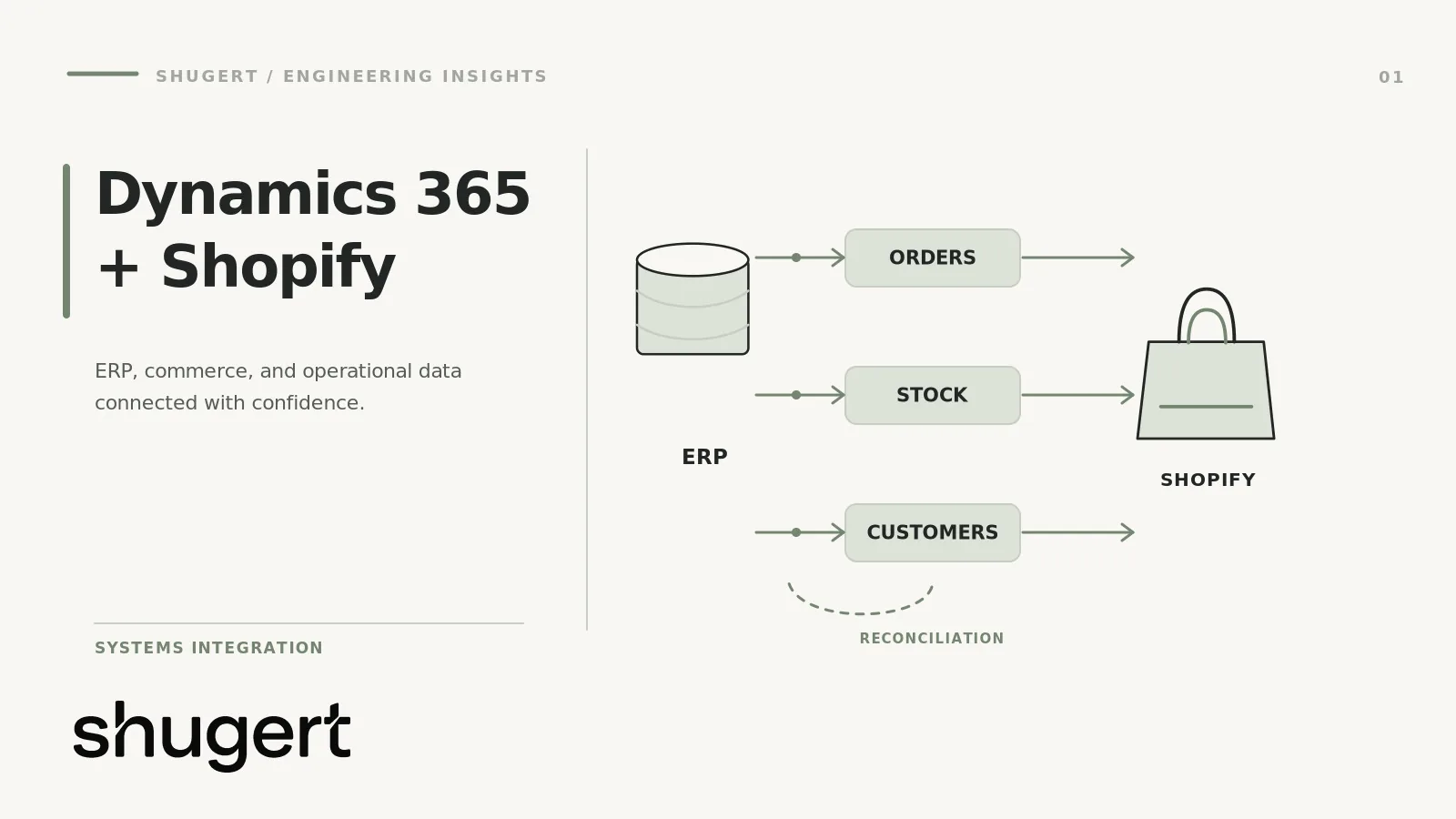
Edition-specific integration guide: The first decision is which Microsoft Dynamics 365 product you actually use. Business Central's Shopify Connector is not the same integration path as Finance, Supply Chain Management or Sales. Confirm the exact edition, deployment model and supported data objects before evaluating a generic ERP-to-Shopify middleware pattern.
If you run Business Central online, the native Shopify Connector is the right starting point for product, inventory, order, and fulfillment sync. If you run Dynamics 365 Finance, Supply Chain Management, or Sales, the Business Central connector is not a drop-in option. Assess an edition-compatible integration platform or custom API layer; Inventory Visibility may be relevant for supported Supply Chain Management inventory scenarios. Either path requires planning for API rate limits, pinned API versions, and a real monitoring routine, not a one-time setup.
Key Takeaways
The best Shopify integration approach depends on your Dynamics 365 edition, your data complexity, and your inventory needs, with native connectors suitable for simple shops and middleware for larger, multi-channel operations.
| Point | Details |
|---|---|
| Use native Shopify Connector | The native connector is ideal for Business Central online shops with supported objects, offering the lowest effort to synchronize products and inventory. |
| Build custom middleware for complex needs | Custom middleware built on Shopify’s GraphQL Admin API suits teams requiring control over data mapping, non-Business Central Dynamics modules, or extensive customization. |
| Implement Inventory Visibility for real-time inventory | Supply Chain Management shops with multi-channel inventory needs benefit from Inventory Visibility, providing real-time, enterprise-scale stock accuracy. |
| Prepare for API rate limits and version pinning | Design integrations carefully around Shopify’s API rate limits and keep Business Central updated to avoid synchronization failures after version retirements. |
| Edition-specific architecture review | Confirm Business Central versus Supply Chain Management, Finance or Sales before choosing connector, middleware and inventory ownership. |
Table of Contents
- Integration approaches: native connector vs. custom middleware vs. Inventory Visibility
- How Dynamics editions differ and why that matters
- What the Shopify Connector synchronizes
- Shopify API constraints that shape integration design
- Reference integration architectures: native connector flow and an enterprise middleware alternative
- Implementation checklist: preflight, config, mapping, testing, and go-live tasks
- Error handling, logging and monitoring: where to look and how to respond
- Upgrade and maintenance: API version pinning and Business Central release waves
- Common failure scenarios and practical mitigations
- Practical advice from a senior Shopify engineering partner
- How we help with Shopify and Dynamics 365 integrations
- FAQ
- Authoritative documentation and release notes to bookmark
Integration approaches: native connector vs. custom middleware vs. Inventory Visibility
Three patterns cover almost every Dynamics 365 and Shopify integration. The native Shopify Connector handles bidirectional sync for Business Central shops with modest engineering overhead. Custom middleware, typically built on the Shopify GraphQL Admin API, fits teams that need to control over mapping logic, custom objects, or non-Business Central Dynamics modules. Inventory Visibility fits Supply Chain Management shops that need a real-time inventory microservice across multiple channels, not just Shopify.
- The native connector is lowest effort but limited to Business Central online and to the object types it already supports.
- Custom middleware costs more to build and maintain but scales to any Dynamics edition and any data model.
- Inventory Visibility trades sync simplicity for real-time, multi-channel inventory accuracy at enterprise volume.
As a rule of thumb, Business Central shops with a catalog that fits the connector’s supported fields should start there. Enterprise Supply Chain Management shops, or any team syncing multiple sales channels against one inventory pool, should plan for Inventory Visibility or a custom service from day one.
How Dynamics editions differ and why that matters
Dynamics 365 is not one system for integration purposes. The Shopify Connector works only with Business Central online and is not compatible with Dynamics 365 Sales, Finance, or Supply Chain Management, according to Microsoft’s own FAQ. Teams on those enterprise applications need a different architecture entirely.
- Business Central online: install the connector from the Marketplace or use the preinstalled version, then configure shop cards directly.
- Finance, Supply Chain Management, or Sales: build on Inventory Visibility for real-time stock, or write custom middleware against the GraphQL Admin API for orders, customers, and financial records.
- Either path needs both a Business Central or Dynamics license and a Shopify license, plus a team that owns ongoing maintenance, not just initial setup.
The licensing split also changes team responsibilities. A Business Central team can often run the connector with existing admin staff; an enterprise SCM or Finance team usually needs a developer who owns the middleware and its error handling.
Dynamics edition fit: what to verify before implementation
- Business Central online: Evaluate Microsoft's native Shopify Connector first. Validate its supported product, customer, order, inventory and fulfillment flows against your actual configuration rather than assuming every custom field is synchronized.
- Dynamics 365 Finance: Inventory Visibility is not a general-purpose substitute for order, invoice and finance integration. Identify the required Finance entities and assess an edition-compatible integration platform or custom API layer.
- Dynamics 365 Supply Chain Management: Evaluate inventory-specific capabilities separately from sales-order and fulfillment orchestration; document which system owns available-to-sell quantities.
- Dynamics 365 Sales: Treat CRM account and contact synchronization as a distinct use case. Do not assume the Business Central Shopify Connector supports Sales entities.
For each edition, record supported objects, direction of synchronization, authentication, exception ownership and recovery tests before selecting the connector.
What the Shopify Connector synchronizes
The connector covers a specific, well-documented set of objects, and knowing the configuration knobs avoids a lot of rework later. On the product side, it exports and imports items, images, variants, bar codes, vendor numbers, tags, and metafields, according to Microsoft’s connector overview.
- Products: items, images, variants, metafields, and price group logic sync in both directions depending on how you configure Shop Card toggles.
- Inventory: you choose which locations export to Shopify, pick a stock calculation method, and set Default Product Location behavior, with Business Central acting as the system of record so purchase orders, transfers, and production updates flow through to Shopify availability.
- Orders: order synchronization uses Auto Sync Orders and the job queue, with options to auto-create sales documents, create invoices from orders, filter which orders import, and map shipments back to Shopify.
Price synchronization has a quirk worth knowing: it relies on temporary Sales Quote documents tied to a temporary “Shopify Store” customer, and partner extensions that do not check for temporary records can throw “Sales Header does not exist” errors during price sync.
Shopify API constraints that shape integration design
Any custom work against Shopify, and the connector itself under the hood, runs into the GraphQL Admin API’s rate limiting model. Shopify uses a leaky-bucket system based on query cost rather than request count, and the bucket’s restore rate depends on your plan: Standard stores get 100 points per second, Advanced gets 200, and Plus gets 1,000 points per second, ten times the standard rate.
Large catalogs add another constraint: single-query cost limits and daily variant creation throttles mean a full catalog export or bulk variant load needs deliberate batching, not a single sweeping call. For design purposes, that means breaking updates into batches, building in backoff and retries, and watching the API’s cost headers rather than discovering a 429 error in production.
Reference integration architectures: native connector flow and an enterprise middleware alternative
The Business Central flow is straightforward once you see it end to end: the job queue triggers connector codeunits, which call the Shopify GraphQL Admin API, with every run logged and any failed records captured on the Skipped Records page. That queue-driven model is efficient, but it hides some failures by design: job queue runs do not always surface a visible warning when a record is skipped.
An enterprise pattern for Finance, SCM, or Sales looks different. It typically runs on an event bus with independent microservices (Inventory Visibility is one example), Azure Key Vault for storing credentials, a message queue to decouple producers from consumers, idempotent processors so retries never double-post an order, and its own monitoring layer.
- Rotate Shopify access tokens whenever app scopes change, not just on a fixed schedule.
- Scope embedded apps and tokens to the minimum permissions the integration actually needs.
- Treat the job queue’s silent skips as a monitoring gap to close, not an edge case to ignore.
Pro Tip: Build a lightweight dashboard that surfaces Skipped Records counts daily, even for the native connector, so silent failures surface before a customer notices a missing order.
Implementation checklist: preflight, config, mapping, testing, and go-live tasks
A disciplined rollout sequence catches the mistakes that cause production incidents later.
- Confirm both Business Central and Shopify licenses, then create sandbox environments in each system before touching production data.
- Generate access tokens and app scopes, and document which scopes each token actually needs.
- Configure the Shop Card: set sync directions for items and images, map SKUs, define price groups, toggle inventory tracking, and filter which locations sync.
- Import a small batch of sample products and test orders, with logging set to All so you can see every transaction detail.
- Check the Skipped Records page after each test run and resolve every flagged record before expanding the test set.
- Test token rotation once, deliberately, so you know what breaks and how to recover before it happens in production.
- Enable background job queue syncs for full automation once test runs are clean.
- Schedule a post-launch review soon after launch and set a recurring maintenance window going forward.
Error handling, logging and monitoring: where to look and how to respond
When a sync fails, start with the Last Error Info field on the Shopify Shop Card and the Shopify Skipped Records page, then review the job queue entries. Microsoft’s troubleshooting guide covers these checks. Background job queue runs can skip records without raising a visible alert, which is why periodic manual audits matter even when nothing looks wrong on the surface.
The practical playbook is simple: temporarily raise logging to capture full detail, inspect the failed requests, fix the underlying data, then re-run a targeted sync rather than a full resync. AL stack traces and connector-specific error fields usually point straight to the cause, often a customization conflict or a missing mandatory field.
Upgrade and maintenance: API version pinning and Business Central release waves
The connector pins a specific Shopify API version at each Business Central major release, and Shopify retires API versions on a quarterly cycle. Falling behind on Business Central upgrades is not a minor inconvenience: after an API version ages out, Shopify may route requests to a supported version and schema changes can disrupt the connector; test and update the connector proactively.
The fix is a calendar, not a fire drill. Track Business Central release notes each wave, schedule the upgrade inside a planned maintenance window rather than reacting after a failure, and run a full test sync immediately after each upgrade to confirm mappings still behave as expected.
Common failure scenarios and practical mitigations
Most integration incidents fall into a few repeatable categories.
- 429 throttle errors: batch updates, use bulk operations for large exports, and add exponential backoff to every retry loop.
- Data validation failures: pre-validate mandatory fields, SKUs, prices, and required accounting fields, before export rather than after a rejection.
- Extension conflicts: check AL stack traces and connector codeunit error messages first; most customization conflicts show up there.
- Silent background skips: run periodic full-sync audits and treat the Skipped Records page as a standing to-do list, not an occasional check.
Practical advice from a senior Shopify engineering partner
The native connector is the right call for most Business Central shops with a catalog that fits its supported fields. Once you are on Finance, Supply Chain Management, or Sales, or your catalog and order volume outgrow the connector’s assumptions, custom middleware becomes the more defensible investment. Either way, someone on your team needs to own Skipped Records audits and connector upgrades as a recurring job, not a one-time setup task. When that capacity does not exist internally, a senior-led Shopify engineering partner can tune the connector or scope a middleware build without the trial and error of a first attempt.
How we help with Shopify and Dynamics 365 integrations
We build and maintain Shopify integrations for established DTC and B2B brands, including custom app development, Shopify Plus engineering, connector tuning, and the QA and release discipline that keeps a sync reliable after launch. For teams moving off a legacy ERP setup or into a broader replatforming effort, our Shopify ERP integration guide covers the wider landscape beyond Dynamics 365 specifically.
Depending on where you are, that might mean a scoped implementation of the native connector, an architecture review before you commit to custom middleware, or a retainer that covers ongoing monitoring and maintenance once you are live.
- Scoped connector implementation or custom middleware build through our custom Shopify development work.
- Architecture review for teams deciding between the native connector, Inventory Visibility, and a custom service.
- Ongoing monitoring and maintenance retainer for teams that want Skipped Records audits and upgrade cycles handled for them.
If you want a fixed-price scope for your integration, request a quote and we will walk through your Dynamics edition, catalog size, and order volume before recommending an approach.
FAQ
What ERP works best with Shopify?
Business Central online has the most direct path through its native Shopify Connector, since Microsoft builds and maintains that integration specifically for Business Central. Dynamics 365 Finance, Supply Chain Management and Sales require an edition-compatible integration platform or custom middleware; Inventory Visibility applies only to supported Supply Chain Management inventory scenarios.
Does Shopify allow API integration?
Yes, Shopify supports integration through its GraphQL Admin API, which handles products, inventory, orders, and customer data with a cost-based rate limiting model. Plan-based restore rates range up to 1,000 points per second on Shopify Plus, which affects how much data you can sync and how fast.
Authoritative documentation and release notes to bookmark
- Microsoft Learn: Business Central Shopify Connector overview: available objects and setup.
- Microsoft Learn: Supply Chain Management Inventory Visibility: scope and prerequisites; this is not a standalone Finance or Sales feature.
- Shopify developer documentation: API rate limits: production throttling and retries.