Klaviyo Shopify Integration: Debug Missing Purchases for DTC Brands
Connect Klaviyo with Shopify and diagnose consent, profile sync, duplicate events, missing purchases, pixel impact, and checkout tracking with focused QA.
Install the Klaviyo app, connect your mystore.myshopify.com store, enable the Klaviyo app embed, and configure your sync settings. That gives you two-way profile and order sync plus onsite tracking. Most profile updates land quickly, while event-based syncs such as email opens and clicks can take up to 24 hours, so test before you trust the data. Klaviyo’s sync details explain these delays.
Key Takeaways
Installing and configuring Klaviyo correctly ensures accurate data sync and tracking between Shopify and Klaviyo, preventing issues and optimizing e-commerce marketing efforts.
| Point | Details |
|---|---|
| Proper installation steps | Follow the official installation sequence, including app embed activation and pre-flight checks, to avoid integration problems. |
| Tracking event dependencies | Klaviyo.js events depend on the embed being active, while Shopify pixel events depend on toggling behavioral event settings. |
| Data sync timing and scope | Most profile updates are quick, but event syncs can take up to 24 hours; choose profile sync scope carefully to avoid duplicates. |
| Addressing duplicate or missing data | Re-authenticate and troubleshoot payloads with tools to fix sync issues, and verify order and customer profile accuracy. |
| Shugert Marketing’s approach | We recommend thorough QA, theme checks, and possibly involving senior Shopify engineers for complex migrations or customizations. |
Table of Contents
- How do you install and connect Klaviyo to Shopify?
- What does the Klaviyo app embed actually track?
- Which data syncs between Shopify and Klaviyo, and when?
- Why are events duplicated, missing, or attached to the wrong profile?
- What should your QA checklist cover?
- How do pixels and third-party scripts affect performance?
- How do checkout and Thank you page upgrades affect tracking?
- When should you bring in a senior Shopify engineer?
- Need senior help with your Klaviyo and Shopify data?
- FAQ
- Sources
How do you install and connect Klaviyo to Shopify?
The official Klaviyo setup is short, but skipped checks can cause problems. Run it in this order:
- In Klaviyo, go to Integrations, then Explore apps, search for Shopify, and click Install. You can also add the app from the Shopify App Store listing.
- Paste your store URL in the mystore.myshopify.com format, not your custom domain, and click Connect to Shopify.
- Approve the requested permissions and click Integrate.
- Follow the prompts to enable onsite tracking and choose your sync settings.
- Confirm the connection shows as active before moving on.
Two pre-flight checks save hours. First, a frozen Shopify account or a mistyped store URL can block the integration, as Klaviyo’s troubleshooting guide explains. Second, if you are migrating from another email platform, disconnect it first. If both systems remain active, check for duplicate messages or conflicting subscription records during QA.
What does the Klaviyo app embed actually track?
Enabling the app embed installs Klaviyo.js on your storefront. That script powers Active on Site and Viewed Product, and per Klaviyo’s onsite tracking guide, the embed is the mandatory step for both. Other events travel a different path: Added to Cart and Viewed Collection can be delivered through Shopify’s pixels once you turn on the Track behavioral events setting. Klaviyo’s Shopify data reference describes this split, and it matters because each path fails for different reasons.
- Klaviyo.js events: Active on Site and Viewed Product, dependent on the app embed.
- Shopify pixel events: Added to Cart and Viewed Collection, dependent on the behavioral events toggle.
- Theme dependency: Enable the embed in the App embeds tab of your theme editor and save. Repeat this after any theme change or new theme install.
- Testing: Wait 15 minutes, then check Klaviyo’s Live Events view and the Shopify Pixel Helper.
Pro Tip: When switching themes, verify that the Klaviyo app embed is enabled in the theme you are about to publish. Add “confirm Klaviyo app embed is on” to every theme release checklist.
Which data syncs between Shopify and Klaviyo, and when?
Think of the integration as two pipes with different contents. Klaviyo describes the integration as bidirectional, and its To Shopify sync settings control what flows back.
- Shopify to Klaviyo: Shopify order details, customer profiles, and onsite or pixel events.
- Klaviyo to Shopify: Selected profile properties, email and SMS subscription statuses, and locale.
- Profile scope: You can sync all Klaviyo profiles or only those that already exist in Shopify. Choosing all profiles creates new Shopify customers for Klaviyo-only profiles, so decide deliberately.
- Backfills: Some selected fields backfill. Email opens, clicks, and SMS events do not backfill.
- Latency: Most profile field updates reflect quickly. Event-based syncs such as email opens and clicks can take up to 24 hours. Klaviyo’s sync details describe these delays.
Before mapping Klaviyo profile fields to Shopify metafields, define which system owns each property and whether it syncs in one or both directions. An independent reference on email data mapping patterns provides additional background. Audit email and SMS subscription statuses before enabling bidirectional sync; consent changes need an explicit QA plan.
Why are events duplicated, missing, or attached to the wrong profile?
Start by checking integration health, recent sync errors and whether the live theme has the Klaviyo app embed enabled. If authorization has expired, reauthorize the connection in Klaviyo. Then troubleshoot by symptom:
- Reproduce the problem with a controlled session: one product view, one cart add, one test order.
- Inspect payloads in the Shopify Pixel Helper and Klaviyo Live Events.
- Search page source for duplicates. Multiple company_id values or repeated snippets mean duplicate Klaviyo.js code or multiple connected accounts.
- Check other emitters. Duplicate Viewed Product or Added to Cart counts often trace to Trekkie, native Shopify tracking, or other apps pushing similar events.
- Re-authenticate, then retest.
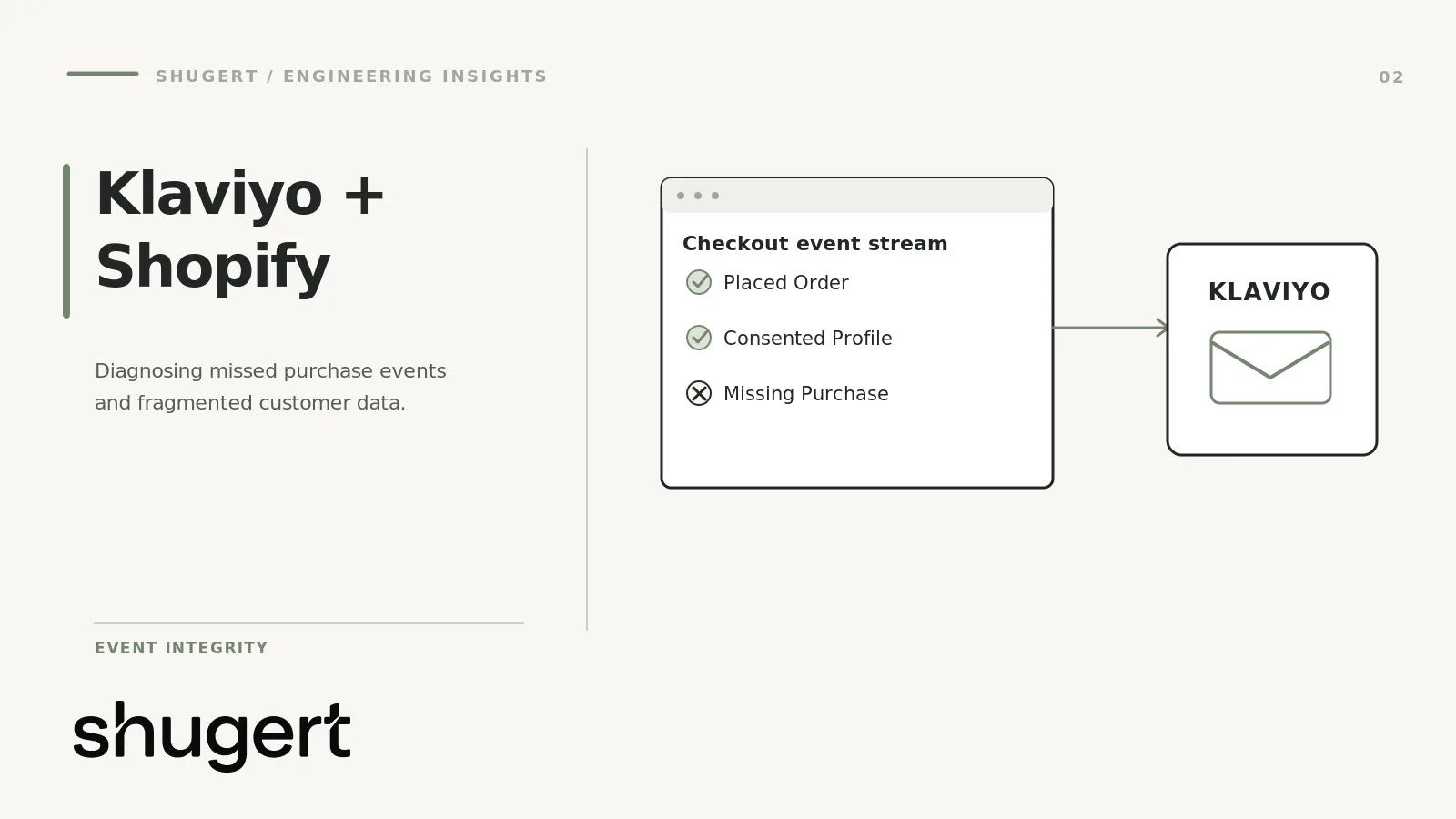
For missing purchases, check order-status conditions and confirm the integration is enabled. Klaviyo notes that Placed Order tracking can be conditional on platform and order status, and the Started Checkout metric is a useful diagnostic. For events arriving without identity, review your Shopify Customer Privacy and Network Intelligence settings, since server-side events depend on them.
Pro Tip: Fix the source of duplicates before adding flow filters. Filters hide the symptom in flows but leave your reporting inflated.
What should your QA checklist cover?
Run this before calling the integration production-ready, and again after every theme or checkout change:
- Confirm the Klaviyo app is present and the app embed is on for the live theme.
- Create a profile through a signup form and verify it appears in Klaviyo, then confirm it backfills to Shopify if you configured that.
- Fire Viewed Product, Added to Cart, Viewed Collection, and Submitted Search, and validate each in the Pixel Helper and Live Events.
- Place a test order and confirm Placed Order and Ordered Product data in Klaviyo. Refund the order if needed.
- Test consent: opt in at checkout for email and SMS, then verify the subscription statuses sync correctly in both systems.
- Compare profile fields across Shopify and Klaviyo for a sample of customers, looking for mismatched names, phones, or locale.
How do pixels and third-party scripts affect performance?
Duplicated scripts can create tracking inconsistencies and add unnecessary work for the storefront. Shopify’s pixel manager runs pixels in a sandbox, which centralizes control but limits scraping-based features and direct PII access.
- Prefer app pixels built on the Web Pixels API when an app offers one, and test them with the Pixel Helper.
- Migrate legacy scripts from theme.liquid or Additional scripts to app pixels, or to custom pixels using Shopify.analytics.publish(), per Shopify’s migration guidance.
- Expect tag manager limits inside the sandbox, and test before relying on them.
- Never load duplicate SDKs. Two copies of Klaviyo.js or two tag managers inflate events and slow pages.
Pro Tip: Audit your script inventory quarterly. Our third-party app performance resource explains how to measure what each script costs.
How do checkout and Thank you page upgrades affect tracking?
Shopify replaced legacy checkout and Thank you page customizations with a new extensibility model, and its upgrade documentation documents the transition away from legacy checkout scripts. By October 2026, the relevant Shopify Plus and non-Plus upgrade deadlines have passed. Treat missing Klaviyo purchases, consent signals or other checkout events as a post-migration tracking incident: audit app pixels, customer events and server-side order reconciliation rather than waiting for an upcoming upgrade.
- Use Shopify’s Upgrade guide to find incompatible apps and custom scripts.
- Recreate checkout.liquid and script-tag customizations as app pixels, custom pixels, or UI extensions.
- Rebuild any analytics that lived on legacy pages as web pixels, then compare order counts before and after.
When should you bring in a senior Shopify engineer?
In-house teams can handle a straightforward install. A messy pixel landscape, a Plus-level checkout customization, or a migration is different, because the risk is silent data loss during live sales windows. The expensive failures are often not install errors, they are the months of quietly wrong attribution nobody noticed. A senior-led partner can scope a controlled release, run QA, and measure before and after, and we position Shugert Marketing to do exactly that.
Need senior help with your Klaviyo and Shopify data?
We offer scoped integrations, performance fixes, migration support, and managed QA for Shopify and Shopify Plus stores. If your tracking is drifting or post-upgrade checkout events are missing, request a fixed-price quote or review our engagement options and pricing to scope the work.
FAQ
How do I connect my Shopify store to Klaviyo?
Install the Klaviyo app from the Shopify App Store or from Klaviyo’s Integrations page, enter your mystore.myshopify.com URL, and approve the permissions. Then enable the app embed and choose your sync settings, following Klaviyo’s getting started guide.
Is Klaviyo free on Shopify?
Pricing is set by Klaviyo, and we do not quote it here. Check the Shopify App Store listing and Klaviyo’s current plans for exact terms.
What is the first fix when Klaviyo stops syncing with Shopify?
Check the integration status, recent sync errors and the live theme’s app embed. If the integration reports an authorization problem, reauthorize the Shopify connection in Klaviyo and retest a controlled event.
Sources
- Troubleshooting your Shopify integration | Klaviyo Help Center
- Shopify Help Center | Plus - Upgrading and replacing your Thank you and Order status pages