HubSpot Shopify Integration: Setup, Sync Limits and When to Go Custom
How to connect HubSpot to Shopify, what the native data sync covers, where it falls short, and when a Shopify Plus brand needs a custom build.
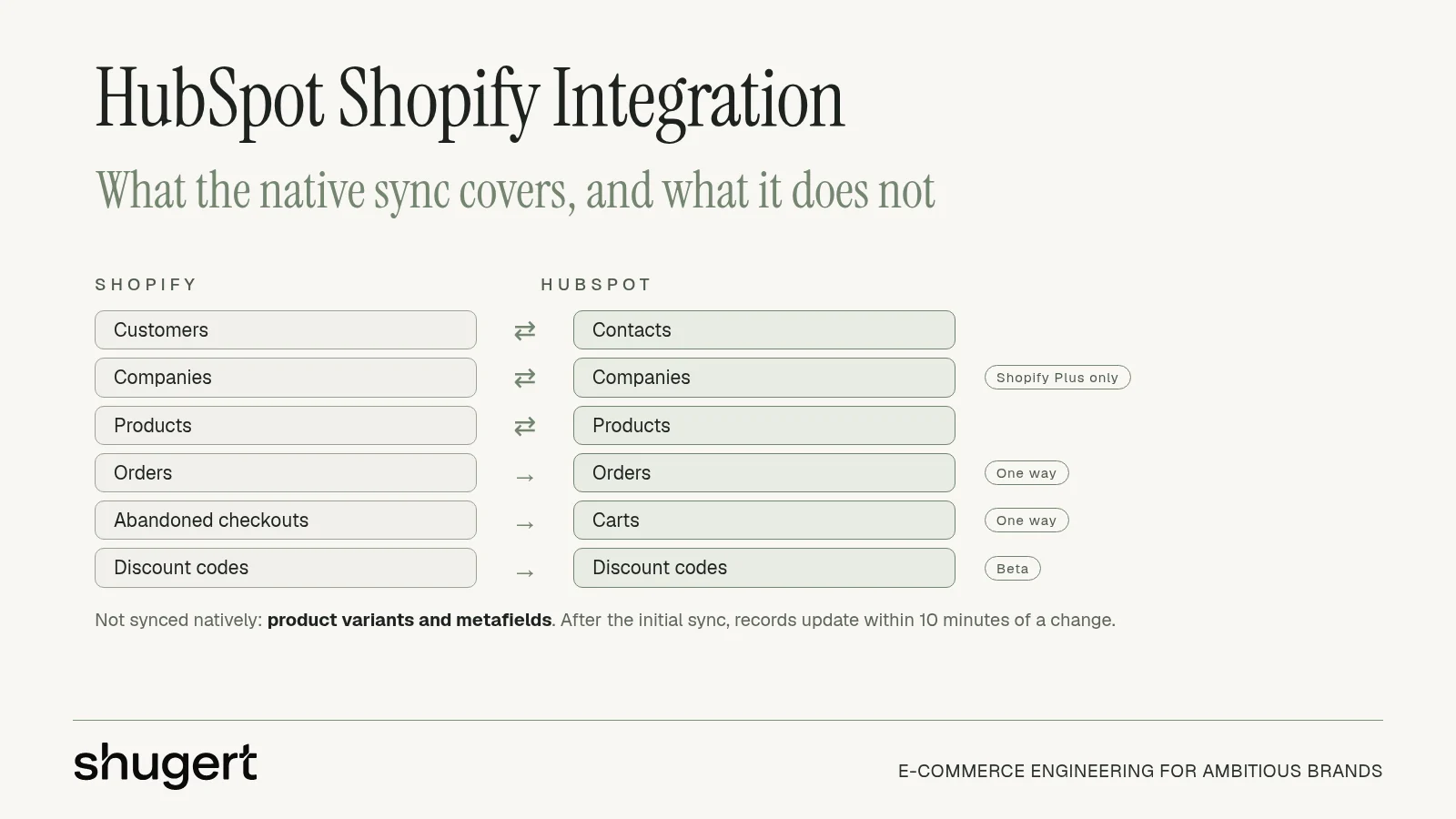
The native HubSpot Shopify integration installs from the HubSpot Marketplace in a few steps. It syncs customers, products, orders and abandoned checkouts into HubSpot CRM, and it is enough for many stores. It is not enough when you need variants, metafields, reshaped data, custom objects or guaranteed delivery at high order volume. This guide covers how to connect the two, what actually moves between them, how to avoid duplicate-record problems, and how to tell whether you have outgrown the standard app.
It is written for ecommerce, marketing and technology leaders at established U.S. DTC and B2B brands on Shopify or Shopify Plus, where the CRM data feeds revenue decisions and a silent sync failure has a real cost.
Need attribution you can trust? Our Shopify marketing and analytics team connects acquisition, retention and tracking to storefront delivery.
Key Takeaways
- The native HubSpot app syncs contacts, companies, products, orders, abandoned checkouts (as carts) and discount codes (in beta). Contacts, companies and products sync both ways. Orders, carts and discount codes flow one way, from Shopify to HubSpot.
- Product variants and Shopify metafields are not synced. Company sync requires Shopify Plus.
- Contacts match on email, companies on normalized company name, and products on normalized product name. Orders and carts are not deduplicated automatically.
- Duplicates and silent failures are the most common problems. Both are preventable with a matching rule, a test plan and monitoring set up before you turn on automations.
- Go custom when you need custom objects, data transformation, high volume, guaranteed ordering, or alerting and error recovery that a standard app does not provide.
Table of Contents
- What the native integration does
- How to connect HubSpot to Shopify
- What the native sync does not cover
- Test before you turn on automations
- When you need a custom HubSpot integration
- How Shugert works on Shopify and HubSpot data projects
- Choosing your path: a quick decision guide
- FAQ
- Sources
What the native integration does
HubSpot’s official documentation lists the objects the Shopify data sync handles. Customers sync to contacts, companies to companies, products to products, orders to orders, abandoned checkouts to carts, and discount codes (beta) to discount codes (beta). Direction matters here:
| Shopify object | HubSpot object | Direction |
|---|---|---|
| Customers | Contacts | Two-way |
| Companies | Companies | Two-way (Shopify Plus only) |
| Products | Products | Two-way |
| Orders | Orders | Shopify to HubSpot |
| Abandoned checkouts | Carts | Shopify to HubSpot |
| Discount codes (beta) | Discount codes (beta) | Shopify to HubSpot |
The one-way flow for orders is a design choice you should plan around. Shopify stays the system of record for transactions. Your team cannot correct an order inside HubSpot and expect it to flow back, so fixes happen in Shopify or through support workflows.
What you can do with the data
Once the objects are in HubSpot, the practical uses are segmentation, lifecycle marketing, cart recovery and reporting. HubSpot’s documentation describes building contact segments from cart or order data and creating an ecommerce dashboard to track customer orders and engagement. Typical segments an ecommerce team builds:
- Customers with one order and no second purchase after a set window, for replenishment or cross-sell flows.
- Contacts with an open abandoned cart, for recovery sequences that go beyond a single email.
- High-value customers by order total, routed to a sales or account owner on the B2B side.
- Wholesale buyers on Shopify Plus, matched to company records so a sales rep sees every order from an account.
The sync also gives marketing and sales one view of a buyer. A rep working a B2B account can see order history on the contact or company record instead of asking someone to look it up in the Shopify admin.
How to connect HubSpot to Shopify
The install itself is short. Per HubSpot’s setup instructions:
- In the HubSpot Marketplace, search for Shopify and click Install.
- Enter your store’s Shopify URL and click Install app.
- In HubSpot, go to Settings, then Integrations, then Connected Apps, and click Shopify.
- Open the CRM syncs tab and click Set up your sync.
- Choose the object you want to sync and work through its settings.
HubSpot also notes that accounts connecting Shopify after November 1, 2025 must add the Shopify Overview card to contact records to see Shopify data there.
The installation is not where projects go wrong. The decisions you make in step five are. Before you click through, settle these four things.
Decide which system wins for each field
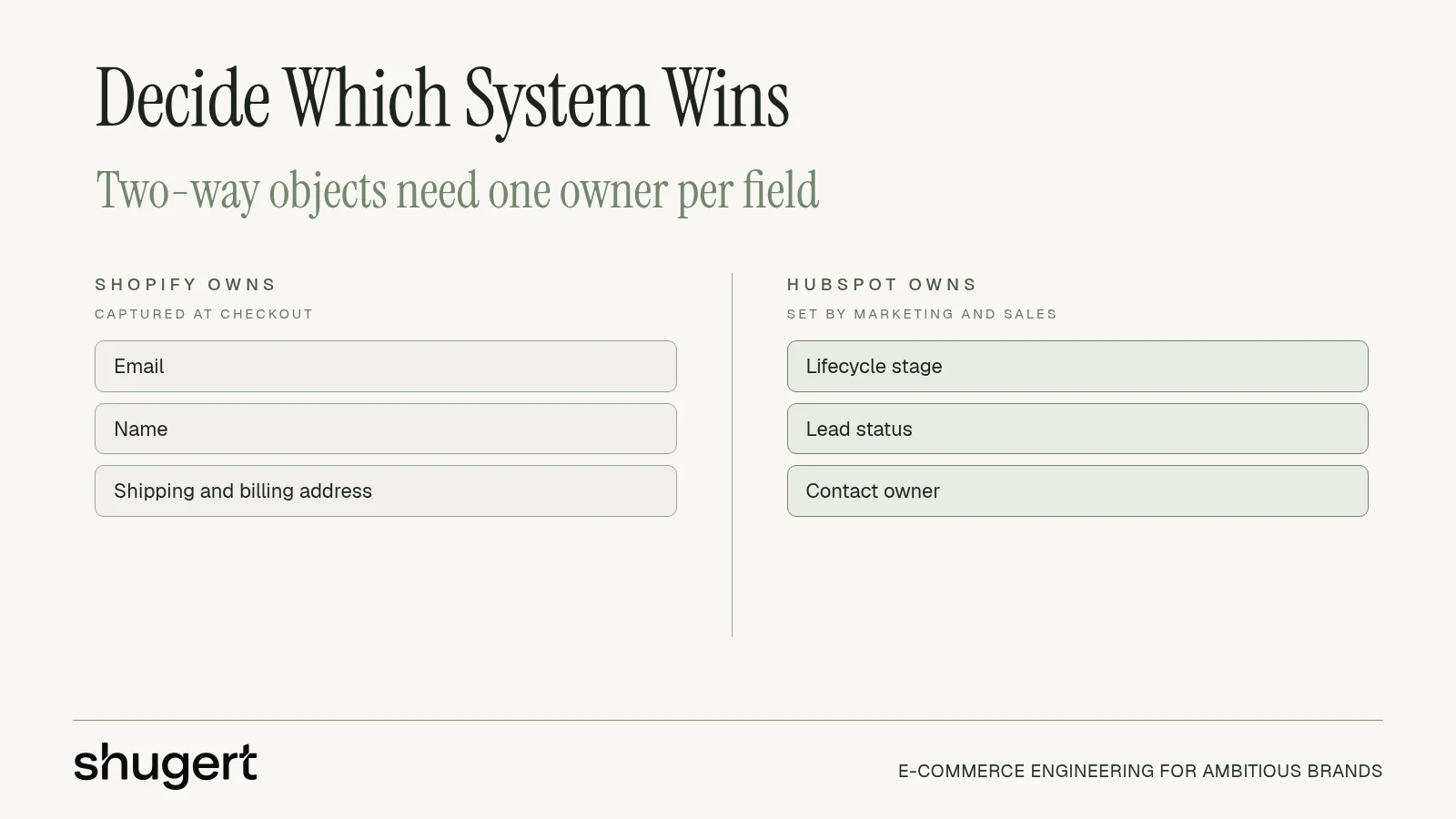
Contacts, companies and products sync in both directions, so two systems can edit the same record. Decide up front which one owns each field. A common rule: Shopify owns email, name and address as captured at checkout, and HubSpot owns lifecycle stage, lead status and owner. Write it down. When a sales rep and a customer both change a phone number, someone needs to know who wins.
Set a matching rule to limit duplicates
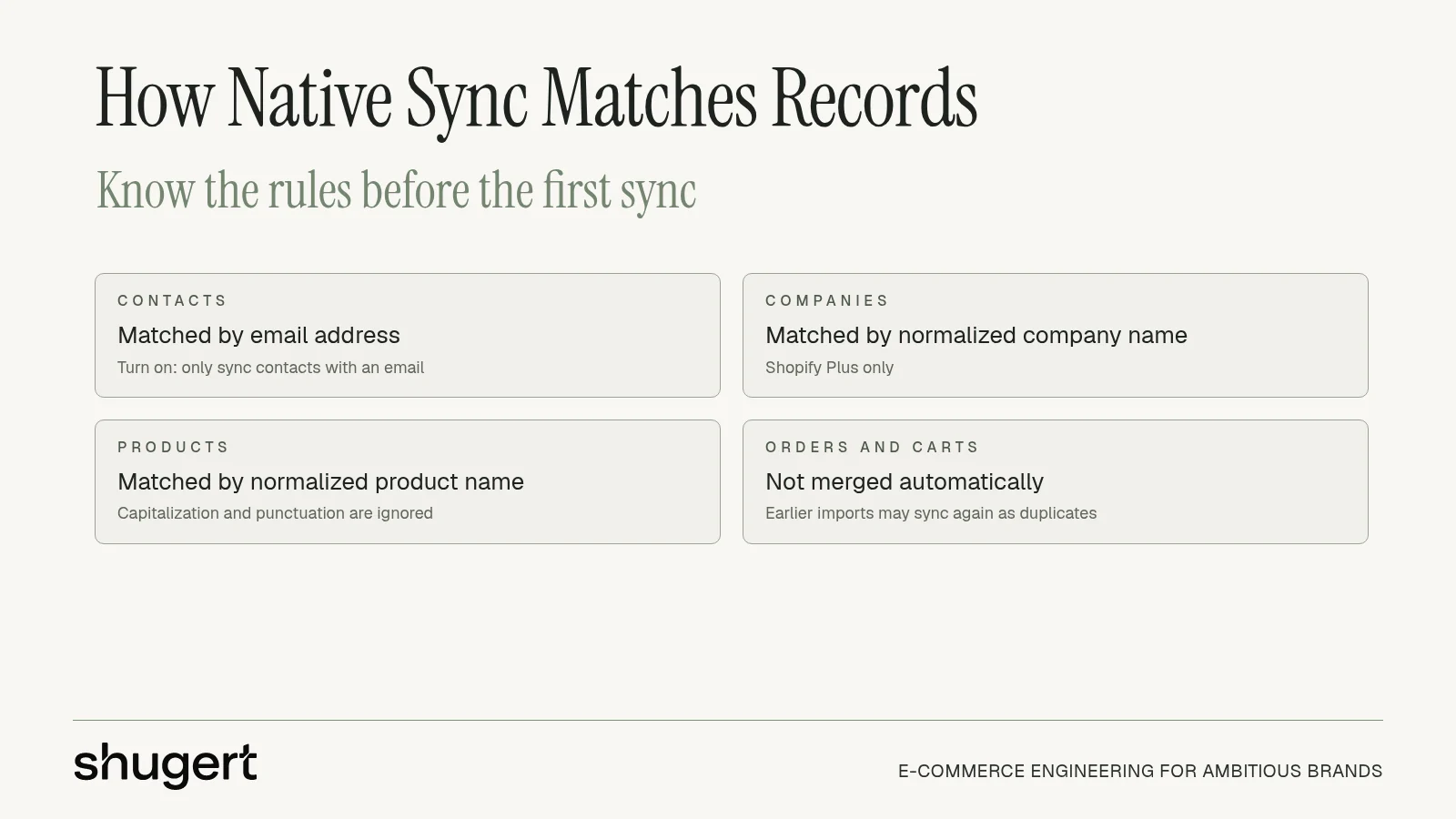
The native sync does not let you write your own matching logic, so the rule you control is the one around it. HubSpot matches contacts by email address, companies by company name, and products by product name, ignoring capitalization, special characters and punctuation for companies and products. Order and cart sync do not automatically merge duplicate records, and records you imported earlier can sync again as new duplicates. Turning on the option to sync only contacts with an email address reduces duplicate contacts. Guest checkouts, B2B buyers with multiple addresses and customers who use different emails across channels are the usual sources. Turn that setting on unless you have a specific reason not to, and keep email as the unique identifier everywhere else in your stack.
Plan the initial sync for off-peak hours
The first sync of a large customer and order history is the heaviest. After it completes, HubSpot states that records sync within 10 minutes of a change. Run the initial sync when marketing is not about to launch a campaign, and do not trigger workflows against freshly imported records until you have checked them.
Audit your existing HubSpot data first
If HubSpot already holds contacts from forms, ad leads or a previous ecommerce connector, clean it before the sync. Merging duplicates after Shopify customers arrive is harder than before, because order associations are attached to the records you may need to merge.
What the native sync does not cover
The limits are clearly documented, and they are where most “why isn’t this working” tickets originate. HubSpot’s documentation states that the app does not sync product variants or Shopify metafields, that company sync is only available on Shopify Plus, and that Shopify orders cannot be changed in HubSpot.
These gaps have practical consequences for established stores:
- Variants. If your catalog is built on size, color, pack or configuration variants, HubSpot sees the product but not the variant detail. Reporting on which variant drives repeat purchase needs another route.
- Metafields. Many Shopify Plus stores keep business logic in metafields: wholesale tier, subscription status, loyalty tier, compliance flags, ERP IDs. None of this reaches HubSpot through the native app.
- Transformation. A field mapping copies a value from one field to another. It does not split, combine, reformat or derive a value. If you need lifetime value by region, a normalized phone format or a computed customer tier, that logic has to live somewhere else.
- Orders are read-only. Refunds, edits and cancellations originate in Shopify. Your HubSpot reporting is only as accurate as the order data Shopify sends.
- Cart events. Abandoned checkouts become carts, which suits recovery workflows. If you want granular behavioral events such as item added to cart to trigger automation in real time, you need to send that data deliberately rather than expecting the standard sync to supply it.
None of this makes the native app a poor choice. It means you should map your reporting and automation requirements against the object list above before you commit, not after your first dashboard shows gaps.
Test before you turn on automations
A sync that looks fine on the first ten records can still be wrong in the aggregate. Our approach is to validate with real orders before any customer-facing workflow depends on the data.
A practical QA pass
- Check one order end to end. Compare the order in Shopify with its HubSpot record: subtotal, taxes, shipping, discounts, total, currency and customer identity fields.
- Run a spread of scenarios. Test 5 to 10 real or test orders that cover a discount code, free shipping, a multi-item cart, a guest checkout, a returning customer and a refund. The refund case is the one most teams skip.
- Check revenue parity. Total a day or a week of orders in Shopify and in HubSpot. They should match within the differences you can explain, such as time zones and refunds.
- Test a cart recovery path. Start a checkout with a test email, abandon it, and confirm the cart record appears and the workflow enrolls the contact once.
- Look for duplicates. Filter for contacts that share an email or a name and address across records.
What to monitor after launch
Track sync freshness (how recent the last update is), error counts, duplicate rate, revenue parity between Shopify and HubSpot, and attribution fields on orders. Sync health and errors for the Shopify app are reviewed from Connected Apps in HubSpot settings, so assign a named owner to check them weekly. An integration that quietly stops syncing is more dangerous than no integration, because teams keep making decisions on stale numbers.
When something breaks, work through the usual causes in order: app permissions and scopes, field mappings, duplicates, API limits and the sync error log. Most failures trace to a permission change, a renamed property or a bulk import that tripped limits.
When you need a custom HubSpot integration
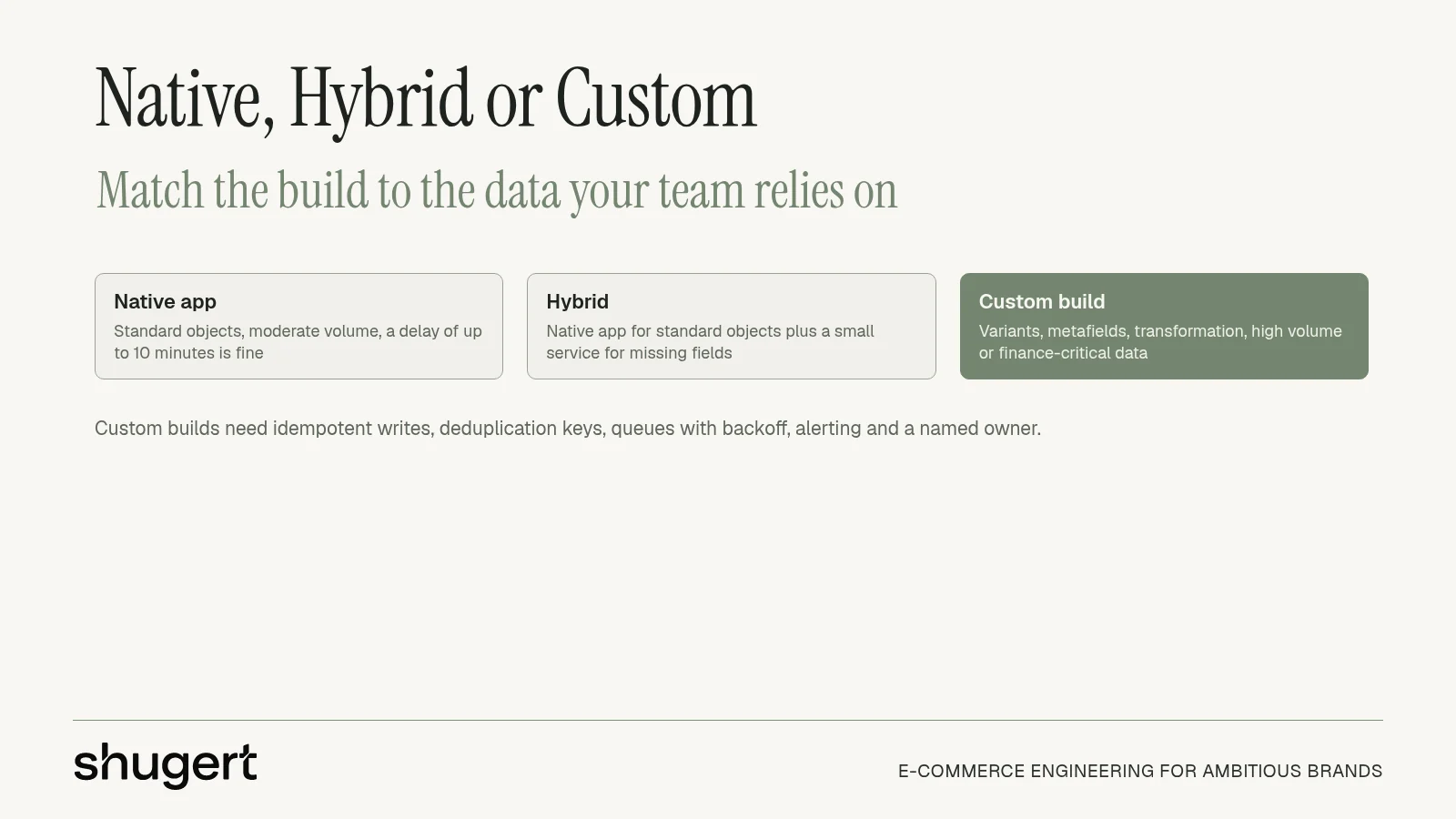
Use the native app when it covers the objects and fields you need, standard mapping is enough, volume is moderate and a delay of up to ten minutes is acceptable. Go custom when one or more of these is true.
- You need data the app does not carry. Variants, metafields, custom objects, B2B price lists, subscription state or ERP identifiers.
- You need transformation. Computed fields, normalized formats, currency or unit conversion, or rules that depend on more than one source field.
- You operate at high volume. Flash sales, product drops and B2B reorder cycles create spikes. At that point you want queues, retries with backoff and a defined ordering strategy.
- A missed update has a financial cost. If sales reps act on the order data or finance reconciles from it, you need alerting and an error path a person can see.
- HubSpot is one of several systems. Once Shopify, HubSpot, an ERP, a tax engine and a 3PL all exchange data, a point-to-point connector gets fragile. Our guide to Shopify ERP integration with webhooks versus batch covers the same architecture questions from the operations side.
What a durable custom build includes
The difference between an integration that holds and one that drifts is mostly unglamorous engineering:
- Idempotent writes. Shopify can deliver the same webhook more than once. Store the event ID from the
X-Shopify-Event-Idheader and skip repeats so a retry never creates a second order or contact downstream. - Deduplication and unique keys. Decide how a record is matched before the first byte moves. Wrong matching can silently multiply your contact database.
- Queues, batching and backoff. Respect API rate limits on both sides. Prefer webhook-driven updates over polling where polling would burn quota.
- A dead-letter queue and alerting. Failed syncs should land somewhere a person is notified, not disappear.
- Documentation and a support window. Someone needs to own the integration after launch, with response expectations in writing.
Timelines depend on scope: a single well-defined connector is a different project from a bidirectional build touching inventory, an ERP and multiple fulfillment locations. A scoping call should give you a range tied to your specific objects and edge cases, not a generic estimate.
Our perspective on HubSpot and Shopify
Most integration problems we see are scoping problems, not installation problems. The native app is a sensible first step for a store whose needs fit its object list. The trouble starts when a team assumes it will carry metafield logic, variant-level reporting or B2B pricing rules it was never built to handle, and finds out after campaigns are already running on incomplete data.
Our approach is to diagnose the constraint first. What decision does the HubSpot data need to support, which fields does it need, and what happens when a sync fails? From there we define scope and acceptance criteria, build in a controlled environment, QA the release against real order scenarios, and measure before and after. The work is done by senior engineers, with no junior handoffs and no offshore subcontracting.
We do not promise that an integration will lift revenue or conversion. We promise that the data your team relies on will be traceable, monitored and fixable when it breaks.
Samuel Noriega
How Shugert works on Shopify and HubSpot data projects
Shugert is a senior-led Shopify and Shopify Plus engineering partner for established U.S. DTC and B2B brands. Integration work fits into a few of our engagement types, all listed with published pricing on our pricing page:
- Scoped Shopify Intervention, from $2,500 one-off, for a defined problem such as fixing a sync gap or auditing an existing connection.
- Custom Development and Replatforming, from $5,000 one-off, for builds that need custom logic, such as a metafield-aware data pipeline.
- Ongoing engineering retainers: Starter at $1,495 per month, Continuous Improvement at $2,795 per month, Growth and Engineering from $5,000 per month, and Shopify Plus Engineering from $9,000 per month.
If your HubSpot data depends on how your Shopify store is built, our custom Shopify development work is where that lives. Tell us what the integration needs to support and we will give you a fixed scope.
Ready to scope it? Get a fixed-price Shopify quote and describe the objects, volumes and systems involved.
Choosing your path: a quick decision guide
| Your situation | Likely fit |
|---|---|
| Standard customers, orders and abandoned carts; moderate volume; marketing-led use of the data | Native HubSpot app |
| Shopify Plus with B2B companies and you only need company records and orders | Native app, with company sync |
| Heavy use of metafields, variants or custom objects in reporting | Custom integration or a supplemental pipeline |
| Need computed fields, currency logic or multi-field rules | Custom integration |
| Spiky volume, finance or sales depends on the data, ERP also connected | Custom, queue-based build with monitoring |
A hybrid is also common: run the native app for the standard objects, and add a small custom service for the fields it cannot carry. That keeps the maintenance surface small while closing the gaps that matter.
Make every purchase show up in your reports
Fashionable Inc. has kept one technical partner for more than six years across three Shopify Plus stores and multiple disciplines. Read the case study
Most quotes returned within 1 business day
FAQ
Is the HubSpot Shopify integration free?
The integration is installed from the HubSpot Marketplace and connects through a standard app install. What you can do with the data depends on your HubSpot plan, so check HubSpot’s current pricing and feature pages for the tier you need. Custom work on top of it is a separate engineering cost.
Can HubSpot sync Shopify product variants and metafields?
No. HubSpot’s documentation states that the native data sync does not support product variants or Shopify metafields. If you need either in HubSpot, you need a custom pipeline that reads them from Shopify and writes them to HubSpot properties or custom objects.
How fast does Shopify data show up in HubSpot?
After the initial sync finishes, HubSpot states that records sync within 10 minutes of a change. That suits most marketing workflows. If a process must react the moment an order lands, plan for a webhook-driven custom integration.
Does it work with Shopify Plus and B2B companies?
Yes, and company sync is available only on Shopify Plus. Companies sync two-way with HubSpot companies, which helps B2B teams tie orders to accounts. Orders themselves still flow one way from Shopify.
How do I stop duplicate contacts?
Turn on the option to sync only contacts with an email address, and clean your existing HubSpot database before the first sync. HubSpot notes that order and cart sync do not automatically merge duplicates, so watch guest checkouts and customers who use more than one email.